Plenty of Android users discover the hard way that deleting an app doesn’t stop the charges. You remove the app, think you’re done, and the subscription quietly keeps billing every month. On Android, uninstalling and canceling are two completely different things.
Canceling a subscription on Android usually takes under a minute, but knowing where to go is the part people miss.
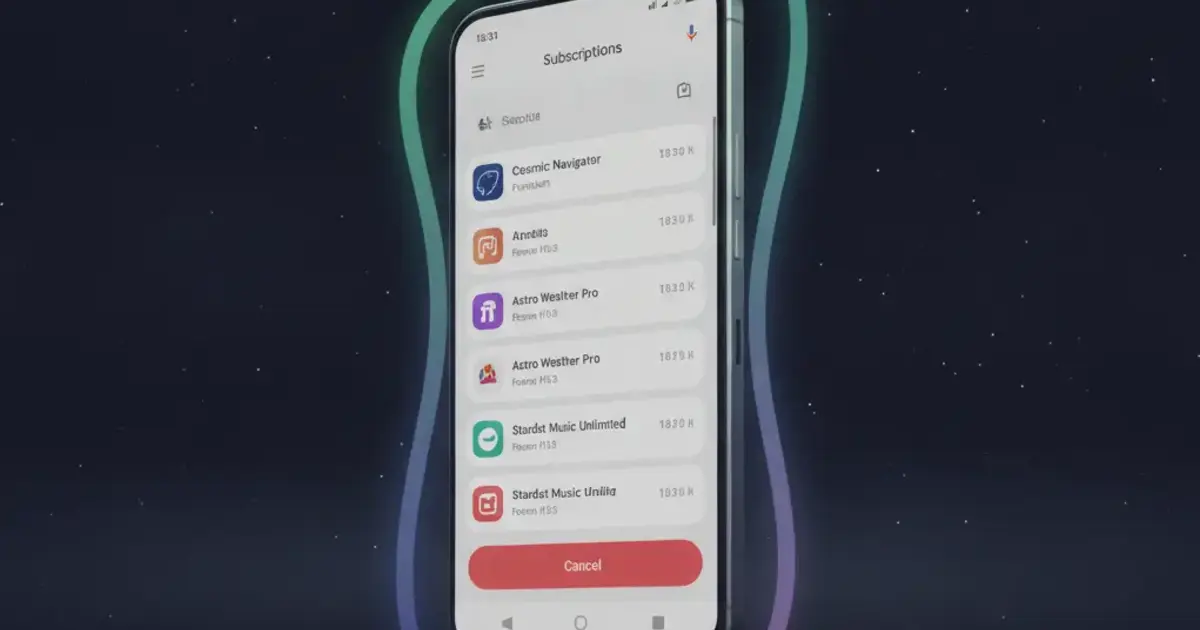
To cancel a subscription on Android, open the Google Play Store, tap your profile picture in the top-right corner, go to Payments & subscriptions, select Subscriptions, tap the one you want to end, and hit “Cancel subscription.” If the subscription isn’t listed there, you signed up outside Google Play and need to cancel directly through the service’s website or account settings.
How to Cancel a Subscription on Android in Google Play
Most app subscriptions on Android run through Google Play’s billing system. If you tapped a “Subscribe” button inside an app and paid through Google, this is where you cancel.
On your Android phone:
- Open the Google Play Store app.
- Tap your profile picture in the top-right corner.
- Select Payments & subscriptions, then tap Subscriptions.
- Find the subscription you want to end and tap it.
- Tap Cancel subscription.
- Select a cancellation reason if prompted, then confirm.
You’ll get a confirmation screen with the date your subscription ends. After that date, Google won’t charge you again, and your access to any paid features stops.
On the web:
You can also cancel at play.google.com in any browser. Sign in with your Google account, click your profile picture, go to Payments & subscriptions, and follow the same steps. This is useful if your phone is lost, broken, or you just prefer a larger screen.
Google Play handles billions of subscription transactions every year across its app ecosystem. Android accounts for roughly 72% of the global smartphone market (Statcounter, 2025), meaning most mobile app subscriptions worldwide run through Google’s billing infrastructure. When you cancel a Google Play subscription, your access doesn’t end immediately. It continues through the current billing cycle, whether that’s the end of the month, the quarter, or the year. Google’s refund policy for standard cancellations doesn’t cover unused time. For accidental charges, you have a 48-hour window to request a refund through Google Play. Pausing is also available: Google lets you pause most subscriptions for 1 to 3 months without canceling entirely, which is useful if you want a temporary break rather than a full exit. Each canceled subscription stays visible in your Google Play subscription history with its expiration date, so you can confirm the cancellation without contacting support.
How to Cancel Android Subscriptions Not in Google Play
Some subscriptions you use on your Android phone aren’t billed through Google at all. If you signed up on a service’s website, through PayPal, or directly with the company, those charges belong to the service, not Google. They won’t appear in your Google Play subscriptions list.
This trips up a lot of people. You search Google Play and find nothing, assume there’s no active subscription, and the charges keep coming.
How to find where you subscribed:
Check your email for a billing receipt. If the sender is from google.com or the subject mentions “Google Play,” it’s a Google Play subscription. If it’s from the service directly (like a receipt from Hulu or Crunchyroll), you signed up outside of Google Play.
Canceling a non-Google Play subscription:
- Log into the service’s website on any browser.
- Go to your account settings or profile page.
- Find a section labeled “Billing,” “Subscription,” or “Membership.”
- Select the option to cancel or manage your plan.
Two common examples on Android: Crunchyroll offers subscriptions both through Google Play and directly on crunchyroll.com. If you signed up on the website, you cancel through your Crunchyroll account settings, not through Google Play. The same applies to YouTube TV: if you subscribed at tv.youtube.com, that’s where you cancel.
Some services make this genuinely confusing because they support both billing paths. Spotify, Netflix, and Duolingo Plus all work this way. If you download the app and subscribe through the app’s “Subscribe” button on Android, Google Play handles billing. If you signed up on their website first and just downloaded the app later, the website handles billing. The app itself looks identical either way.
When you’re genuinely unsure which path applies, it’s safe to check both places. Canceling in Google Play when a subscription lives elsewhere does nothing harmful; the subscription just won’t appear there to begin with. And if you find a subscription in Google Play that you’ve already canceled through the service’s website, the Google Play version may show as active until the service communicates the change, which can take up to 24 hours.
Why Deleting the App Doesn’t Cancel Your Android Subscription
This is the most expensive mistake Android users make, and it’s an easy one given how uninstalling usually ends things on other platforms.
Google Play ties subscriptions to your Google account, not to whether the app is installed. Deleting the app breaks the software off your device, but it leaves the billing agreement completely untouched. Google has no way of knowing you intended to cancel when you tap uninstall.
The numbers add up fast. A $12-per-month subscription you forgot to cancel runs $144 a year. A 2022 survey by C+R Research found the average American pays for around 4.5 subscriptions while underestimating their monthly subscription spending by roughly $133. Forgotten subscriptions are a real drain, and the uninstall-without-canceling mistake is one of the most common reasons people find charges they don’t recognize.
The scenario usually plays out the same way: you download a fitness app or a meditation app, try it for a week, decide it’s not for you, and delete it. Six months later you notice a $9.99 charge from something you don’t recognize. You check your Google Play subscriptions and find it still listed as active. The deletion never triggered a cancellation.
Google does give a small warning when you try to uninstall an app with an active subscription: a prompt appears noting that the subscription will remain active. Most people tap through it without reading. The warning doesn’t cancel anything.
The only way to stop the charges is to go through Google Play’s cancellation flow, or through the service itself, depending on where you originally subscribed.
What Happens After You Cancel an Android Subscription
Canceling doesn’t cut off access immediately. Google’s approach gives you what you already paid for.
Access runs until the billing period ends. Cancel a monthly subscription on the 10th, and you’ll typically have access through the end of that month’s billing cycle. You won’t get a prorated refund for the remaining days.
The subscription status changes to “Canceled.” It still appears in your Google Play subscriptions list with a clear expiration date rather than a renewal date. This is your confirmation that the cancellation went through.
No further charges. Once canceled, Google won’t renew the subscription automatically. If you change your mind before the expiration date, you can resubscribe through the same app and your data and preferences are usually still there.
Refunds for accidental charges are limited. Google’s standard policy doesn’t refund canceled subscriptions for unused time. For accidental purchases, you have 48 hours from the charge to request a refund at play.google.com/store/account/subscriptions. After that window, contact the app developer directly. Some developers will issue refunds that Google’s automated system won’t.
If you subscribed during a free trial: Cancel before the trial converts and you won’t be charged. If you cancel after conversion, the standard cancellation rules apply and you keep access through the paid period you’ve already been billed for.
How Ditchr Helps You Find and Cancel Android Subscriptions
Canceling one subscription is the quick part. Finding all of them scattered across Google Play, direct billing, and old sign-ups is where people lose track.
Most Android users have a mix of subscription types: some through Google Play, some billed directly by the service, some through PayPal recurring payments. Getting a complete picture usually means cross-referencing your Google Play history, your bank statement, and your email inbox.
Ditchr is a free subscription tracker for Android that pulls everything into one dashboard. You can add subscriptions manually from a catalog of known services, or use the “Run a sweep” feature: feed it a screenshot of your bank statement or a billing email and it surfaces what you’re paying for. Ditchr never connects to your bank account; your data stays on your device.
Once your subscriptions are in, you get renewal reminders before charges hit so you’re never surprised by a billing date. A calendar view shows upcoming charges by day. Spend insights rank your subscriptions by cost, so you can see at a glance which ones to ditch first.
Track every recurring charge on your Android phone in one place. Get Ditchr free on Google Play.